
AI design tool demo
AI Object Removal — Before & After Seamless Background Reconstruction
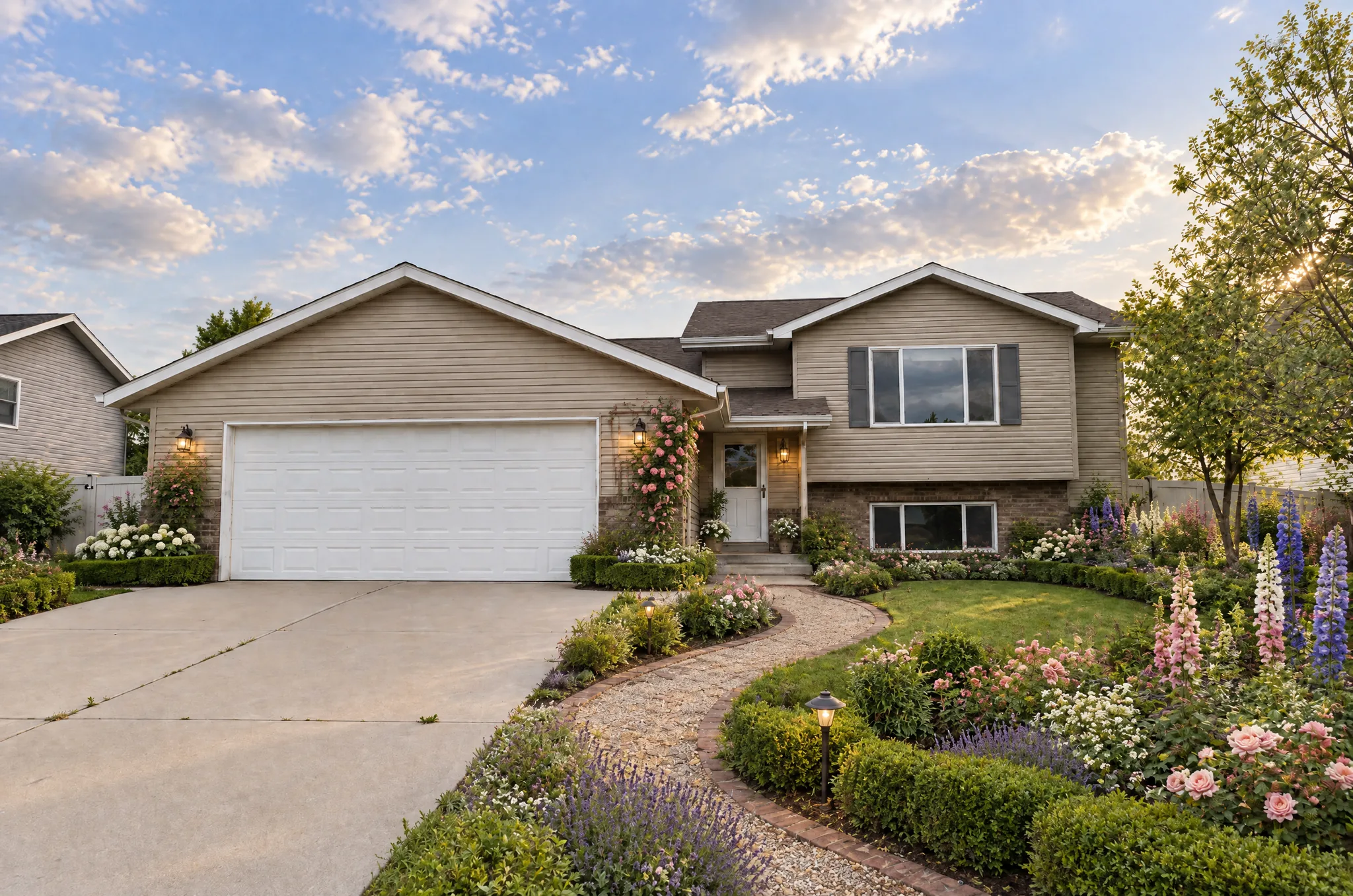
AI design tool demo · Object Removal · AI-generated. Drag the slider to compare the original photo with the redesign.
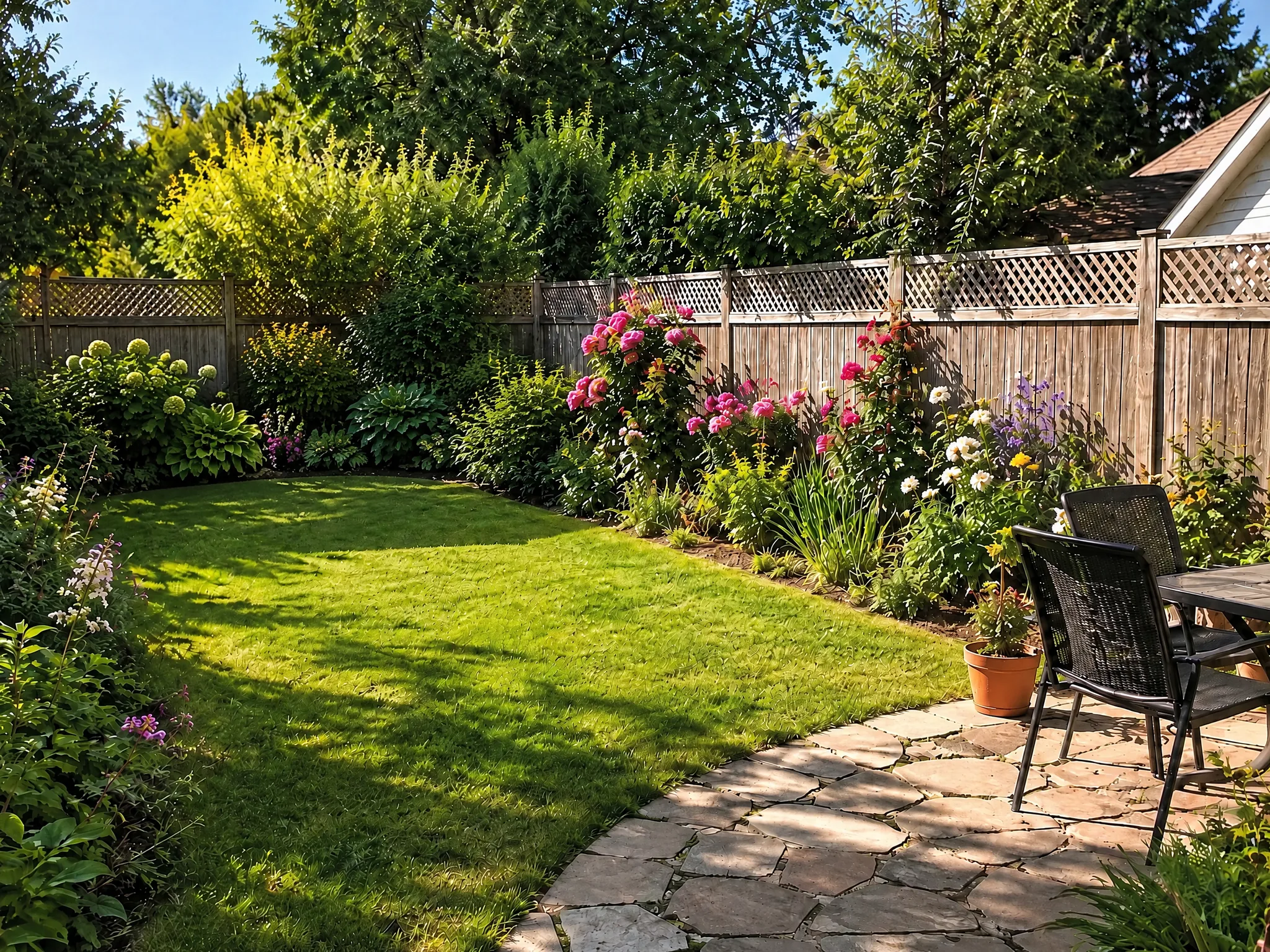
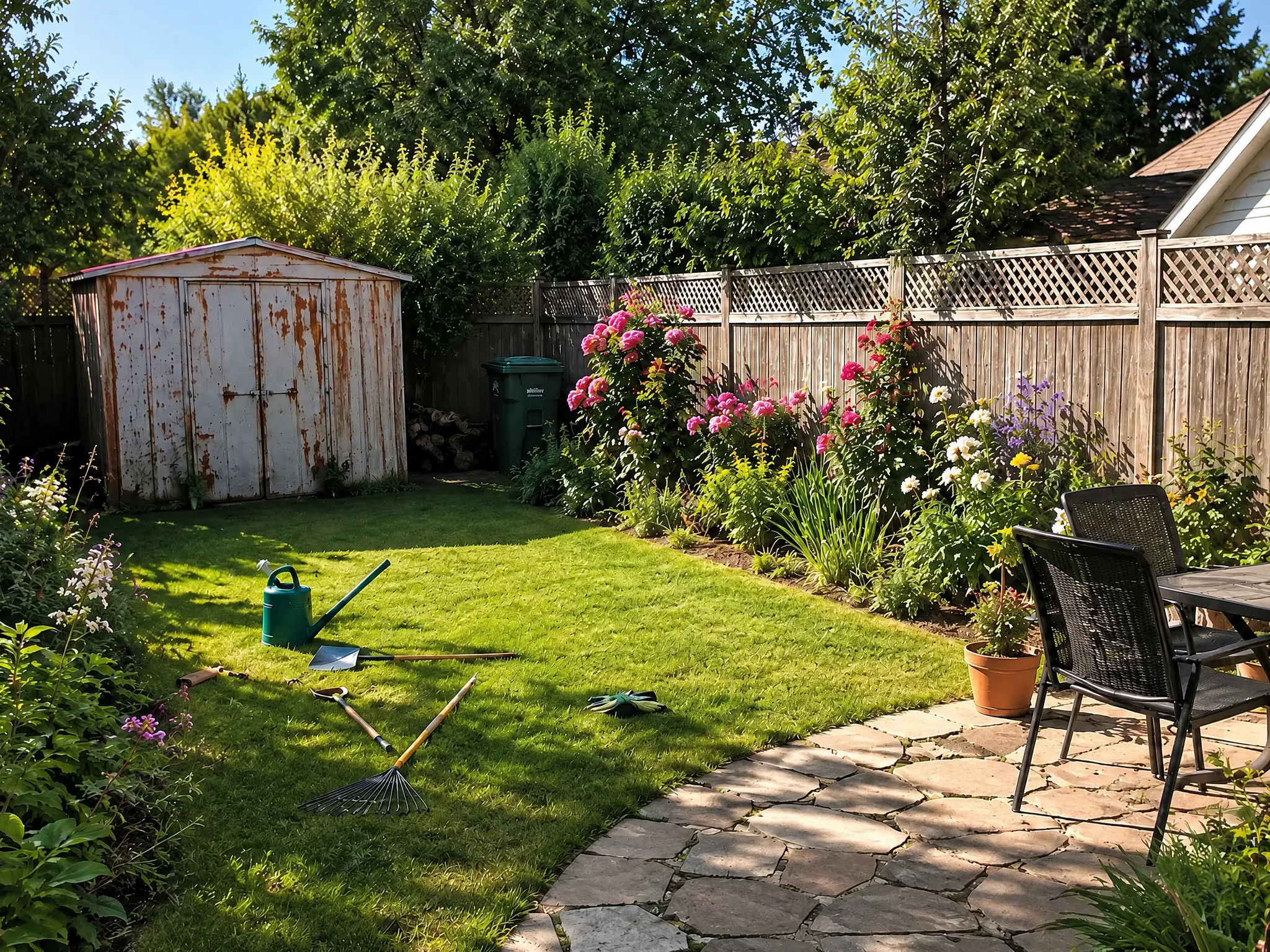
Garden after AI object removal: the shed and scattered tools are gone, leaving a clean lawn, flower borders, and flagstone patio
What changed
Watch unwanted objects vanish from your design photos — here a rusty garden shed and scattered tools disappear, leaving a clean lawn, flower borders, and flagstone patio with natural light and shadows intact. AI-powered removal rebuilds the background so the result looks like a professional retouch, no manual masking needed. Upload your photo and erase clutter, old furniture, or eyesores in seconds free at LandscapeCraft.ai
How to recreate this with your own photo
- 1Take a clear, level photo of your space in good daylight.
- 2Open Object Removal and upload it.
- 3Add one or two instructions about what to keep or add, then generate.
- 4Compare with the slider and tweak one detail at a time until it feels right.
- Name the object and where it is: "the blue bin next to the garage door", not just "the bin".
- Remove one or two objects per pass. Long lists are partly ignored.
- Shoot a little wider than you think you need, since objects at the edge of the frame leave less background to rebuild.
- Space
- Clutter Removed
- Style
- Object Removal
- Made with
- Object Removal
Your turn
Try this on your own photo
Upload a photo of your space and get a object removal redesign in under a minute. Your first 2 designs are free, no sign-up needed.
More transformations
Last updated 2026-10-17